

Managing software across hundreds or even thousands of systems rarely begins and ends with the installation itself.
Operational teams often need to perform additional tasks before or after software changes to prepare systems, validate deployments, preserve configurations or maintain application availability.
For example, before upgrading a monitoring agent, administrators may need to stop a running service and create a backup of its configuration. After the upgrade, they might need to restart the service, verify that it is running correctly and record the outcome for auditing purposes.
Without automation, teams often execute these tasks manually or maintain them as separate scripts. This increases operational complexity, introduces inconsistencies across environments and makes troubleshooting significantly more difficult.
To address this challenge, the Progress®Chef®360™ platform provides Skill Lifecycle Hooks, allowing administrators to execute custom scripts automatically before and after skill installation, updates and removal. A skill is an agent that gives you the ability to perform actions on a node to achieve an outcome.
By embedding operational logic directly within a Skill Definition, lifecycle hooks become an integrated part of the deployment process, enabling repeatable, auditable and platform-managed software lifecycle automation.
Here, we'll explore how Skill Lifecycle Hooks work, walk through the configuration process and demonstrate how they can simplify real-world software deployment workflows.
What Are Skill Lifecycle Hooks and Why They Matter?
Deploying software is often just one step in a broader operational workflow. Organizations frequently perform additional actions before or after installation to prepare the target system, preserve application state, validate deployment success or clean up resources.
These operational tasks are typically implemented as standalone scripts or manual procedures, making deployments more difficult to standardize and audit across large environments.
Skill Lifecycle Hooks in the Chef 360 platform address this challenge by allowing administrators to associate custom scripts directly with a Skill Definition.
The Chef 360 Node Management Agent automatically execute these scripts at predefined stages of a skill's lifecycle, helping operational tasks become an integrated part of the deployment process rather than separate manual activities.
A Skill Definition supports six lifecycle events:
Lifecycle Stage | Description |
Pre-Install | Executes before the skill is installed. Commonly used to validate prerequisites, stop dependent services or create backups before making changes to the system. |
Post-Install | Executes immediately after the installation completes. Typically used to start services, verify the installation, configure application settings or perform health checks. |
Pre-Update | Runs before an existing skill is updated to a newer version. Useful for preserving existing configurations, exporting data or preparing the environment for the upgrade. |
Post-Update | Executes after the update finishes successfully. Administrators can use this stage to validate the upgraded application, restart services or execute post-upgrade verification tasks. |
Pre-Delete | Runs before the skill is removed from the managed node. This stage is commonly used to archive logs, back up configuration files or gracefully stop running services. |
Post-Delete | Executes after the skill has been removed. Typical use cases include cleaning up temporary files, removing residual configurations or performing environment-specific housekeeping tasks. |
Unlike standalone automation scripts that must be managed independently, lifecycle hooks are embedded within the Skill Definition itself. As a result, the hook definitions travel together with the skill throughout its lifecycle.
When the skill is deployed to managed nodes through a Skill Assembly and assigned to a Node Cohort, the associated lifecycle hooks are automatically made available to the Chef 360 Node Management Agent, which executes them at the appropriate stage of the deployment process.
This design provides several operational advantages:
- Consistent execution by maintaining that every managed node follows the same deployment workflow.
- Centralized managementsince lifecycle scripts are maintained alongside the skill rather than distributed across multiple automation systems.
- Repeatable deploymentsby eliminating manual pre- and post-deployment tasks.
- Improved operational visibilitythrough hook execution logs that allow administrators to review execution status and troubleshoot failures directly from the Chef 360 platform.
How to Implement Skill Lifecycle Hooks in the Chef 360 Platform
To demonstrate how Skill Lifecycle Hooks work, let's consider a common enterprise software deployment scenario.
Let’s say, your organization is responsible for deploying a monitoring agent across a fleet of Linux servers. While installing the software package itself is straightforward, the deployment process requires several operational tasks before and after the installation to ensure a successful rollout.
Before the installation begins, administrators want to:
Verify that sufficient disk space is available
Create a backup of the existing application configuration
Stop a running service that could interfere with the installation
Once the installation completes, they need to:
Restart the service
Verify that the service is running successfully
Record the deployment status for future troubleshooting
Instead of maintaining these tasks as separate automation scripts or executing them manually, the Chef 360 platform allows these operations to be incorporated directly into the Skill Definition using Lifecycle Hooks.
Whenever the skill is installed, updated, or removed, the associated scripts are executed automatically by the Chef 360 Node Management Agent during the corresponding lifecycle stage.
In this example, we'll configure both Pre-Install and Post-Install hooks for a Linux-based skill.
Follow these steps to configure lifecycle hooks
Step 1: Open the Skill Definition
- Sign in to the Progress Chef 360 platform.
- Navigate to Node Management.
- Select Setting and then Skill Definitions.
- Create a new Skill Definition or edit an existing one.
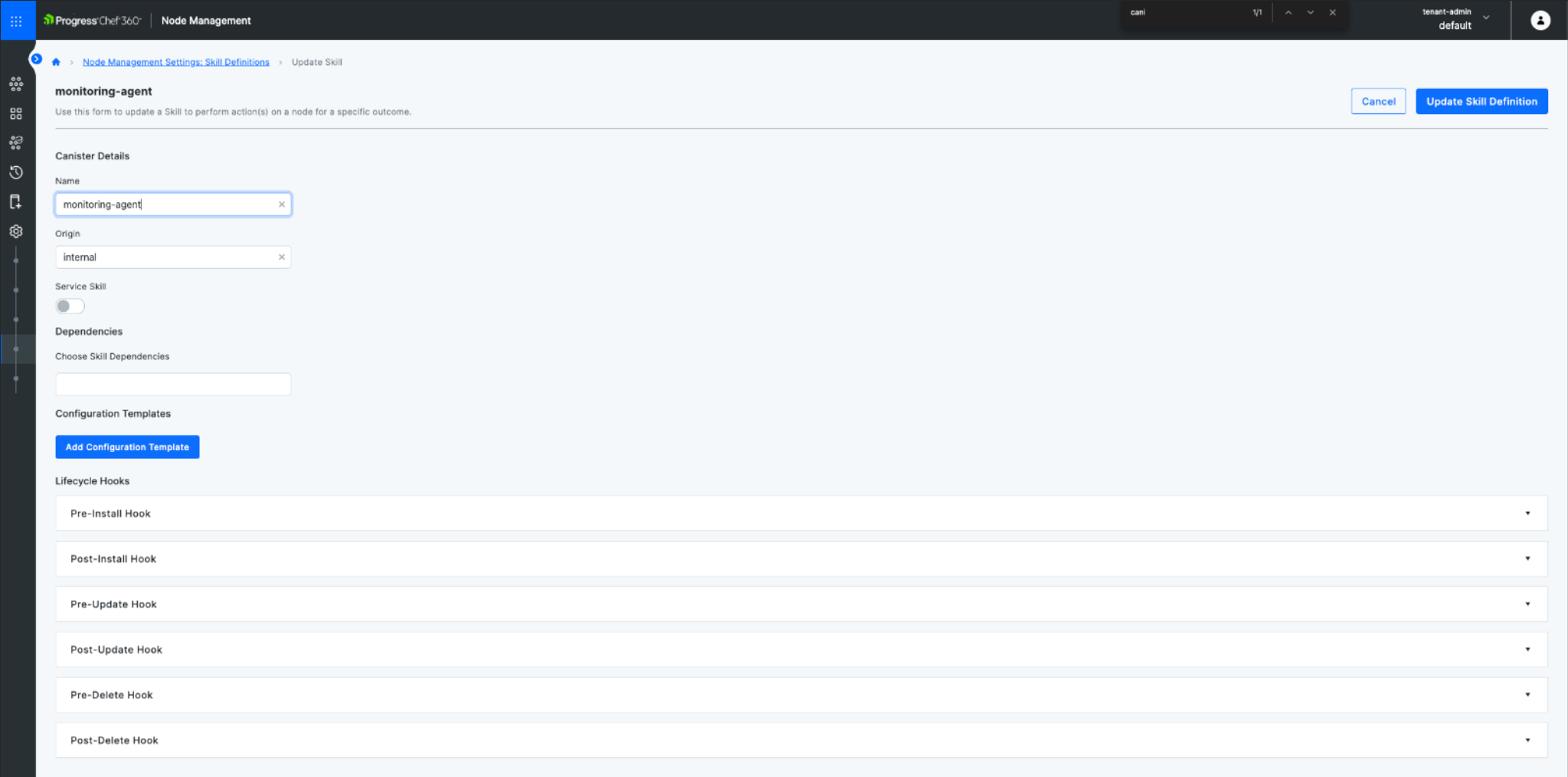
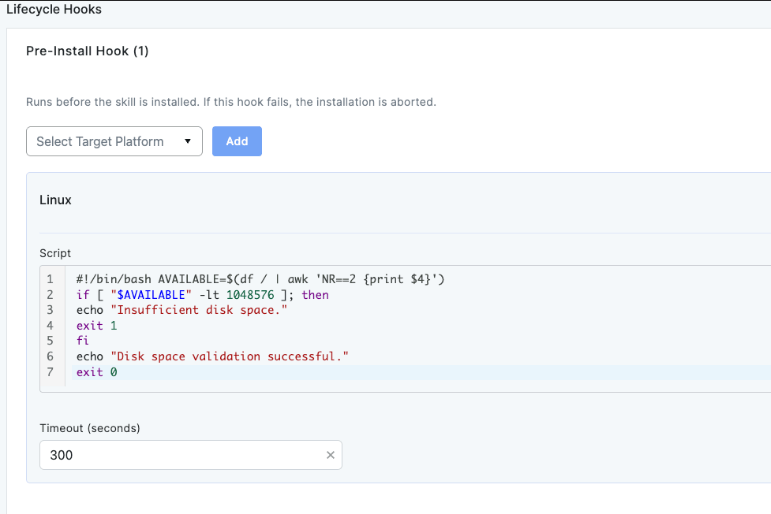
Step 2: Configure a Pre-Install Hook
Expand the pre-install lifecycle section.
Select the operating system platform that matches the target nodes. For example, choose Linux when deploying to Linux-based systems.
In the script editor, provide the shell script that should execute before the installation begins.
The following example validates that sufficient disk space is available before continuing with the installation.
#!/bin/bash AVAILABLE=$(df / | awk 'NR==2 {print $4}')
if [ "$AVAILABLE" -lt 1048576 ]; then
echo "Insufficient disk space."
exit 1
fi
echo "Disk space validation successful."
exit 0
Next, specify the execution timeout for the hook. The timeout defines how long the Node Management Agent should wait before considering the script execution unsuccessful.
Save the lifecycle hook configuration.
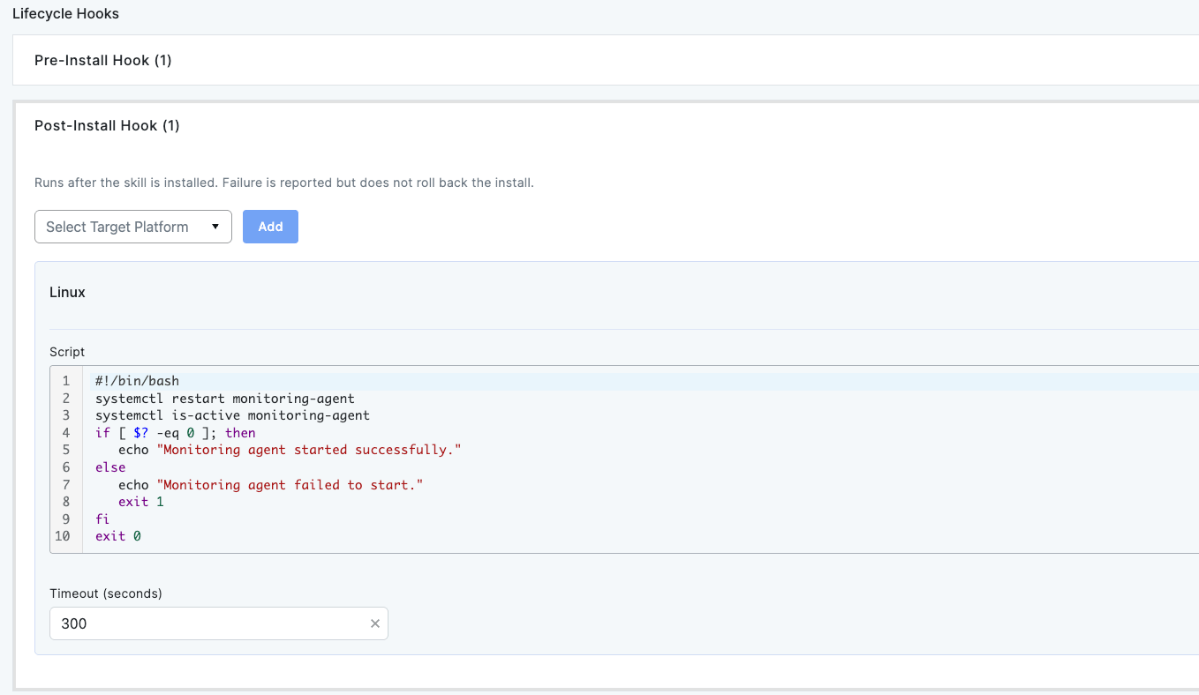
Step 3: Configure a Post-Install Hook
Expand the post-install lifecycle section.
Again, select the appropriate operating system platform.
In the script editor, add the commands that should execute immediately after the installation completes.
The following example verifies that the installed service is running successfully.
#!/bin/bash
systemctl restart monitoring-agent
systemctl is-active monitoring-agent
if [ $? -eq 0 ]; then
echo "Monitoring agent started successfully."
else
echo "Monitoring agent failed to start."
exit 1
fi
exit 0
Configure the execution timeout and save the Skill Definition.
Step 4: Associate the Skill with a Skill Assembly
After the Skill Definition has been saved, add it to the appropriate Skill Assembly.
The Skill Assembly determines which skills are deployed together and serves as the deployment unit for managed nodes.
Step 5: Assign the Skill Assembly to a Node Cohort
Associate the Skill Assembly with the desired Node Cohort.
When the Skill Definition is deployed to managed nodes through a Skill Assembly, the associated lifecycle hook configuration becomes available to the Chef 360 Node Management Agent.
During the corresponding lifecycle event, the agent executes the configured hook automatically
At this point, operational tasks can be managed directly within the Skill Definition instead of maintaining separate standalone scripts. The lifecycle hooks become part of the Skill Definition and are executed automatically during the corresponding lifecycle events.
Step 6: Verify Hook Execution
Deploy the Skill Assembly to the target Node Cohort or trigger the installation of the configured skill on a managed node. During the installation workflow, the Chef 360 Node Management Agent automatically executes the configured lifecycle hooks at the appropriate lifecycle stages.
Administrators can review the execution status and output of lifecycle hooks by navigating to the target node and selecting View Hook Logs. These logs provide visibility into successful executions and any errors encountered during the lifecycle event.
How Lifecycle Hooks Execute During Deployments
Now that the lifecycle hooks have been configured and executed let’s look at how Chef 360 platform processes hook scripts during a skill lifecycle operation.
When a lifecycle event occurs, such as installing, updating or removing a skill, the Chef 360 Node Management Agent identifies any lifecycle hooks configured for the target platform and executes them as part of the deployment workflow.
For example, during a new skill deployment:
Lifecycle Operation | Execution Flow |
|
|
Skill Installation | Pre-Install Hook → Skill Installation → Post-Install Hook |
Skill Update | Pre-Update Hook → Skill Update → Post-Update Hook |
Skill Removal | Pre-Delete Hook → Skill Removal → Post-Delete Hook |
Each lifecycle hook runs as an independent script on the managed node and is governed by the timeout value configured within the Skill Definition. The Node Management Agent waits for a hook to complete before continuing to the next stage of the deployment workflow.
The platform captures all outputs generated by the script, including diagnostic messages and errors. These are made available through hook execution logs for troubleshooting and audit purposes.
Best Practices for Using Skill Lifecycle Hooks
For reliable and predictable deployments, consider the following best practices when designing lifecycle hooks:
- Keep hook scripts focused on a single responsibility
- Validate system prerequisites before making changes
- Design scripts to be idempotent so repeated executions produce consistent results
- Configure appropriate timeout values based on the expected execution time
- Return meaningful exit codes to clearly indicate success or failure
- Log useful diagnostic information to simplify troubleshooting
- Thoroughly test hooks in non-production environments before rolling them out to production nodes
Note: Use platform-specific lifecycle hooks for heterogeneous environments. Linux shell scripts and Windows PowerShell or batch scripts are not interchangeable. When managing both Linux and Windows nodes, create platform-specific lifecycle hooks for each operating system. If the deployment workflows differ between operating systems, consider organizing the nodes into separate Node Cohorts so each cohort receives the appropriate skill configuration and lifecycle hook execution.
Following these practices helps improve deployment consistency and reduce operational risk across managed environments.
Security Considerations
Because lifecycle hooks execute directly on managed systems, organizations should follow appropriate security practices when developing and maintaining hook scripts.
Consider the following recommendations:
- Avoid hardcoding credentials, API tokens or secrets within scripts
- Use platform-managed secrets whenever possible
- Restrict file permissions for scripts containing sensitive information
- Validate and sanitize script inputs before processing them
- Apply the principle of least privilege to any commands executed by the hook
- Review and test scripts as part of the organization's change management process
Following these practices helps reduce operational risk while maintaining secure and consistent deployments.
Common Use Cases
Skill Lifecycle Hooks can be applied to a variety of operational workflows. Some common examples include:
Lifecycle Stage | Typical Use Cases |
Pre-Install | Verify prerequisites, stop services, create backups, validate disk space |
Post-Install | Start services, perform health checks, register applications, send notifications |
Pre-Update | Export configurations, back up data, notify dependent systems |
Post-Update | Validate the upgraded application, restart services, perform smoke tests |
Pre-Delete | Archive logs, back up configuration files, gracefully stop services |
Post-Delete | Remove temporary files, clean up directories, unregister applications |
These examples demonstrate how lifecycle hooks can be used to automate operational tasks throughout the entire software lifecycle.
Conclusion
Software deployment often involves more than simply installing or removing a package. Organizations frequently need to perform validation, backup, configuration and cleanup tasks before or after software changes to ensure reliable operations.
Skill Lifecycle Hooks in the Chef 360 platform simplify this process by allowing administrators to embed custom scripts directly within a Skill Definition. Because these hooks are executed automatically during the installation, update and deletion lifecycle events by the Chef 360 Node Management Agent, operational tasks become integral to the deployment workflow.
By combining centralized management, automated execution and detailed execution logging, Skill Lifecycle Hooks enable organizations to build more consistent, repeatable and auditable software deployment processes across their infrastructure.
If you have any questions and would like to receive support with this feature, visit us here or request for a demo here.

